
Overview
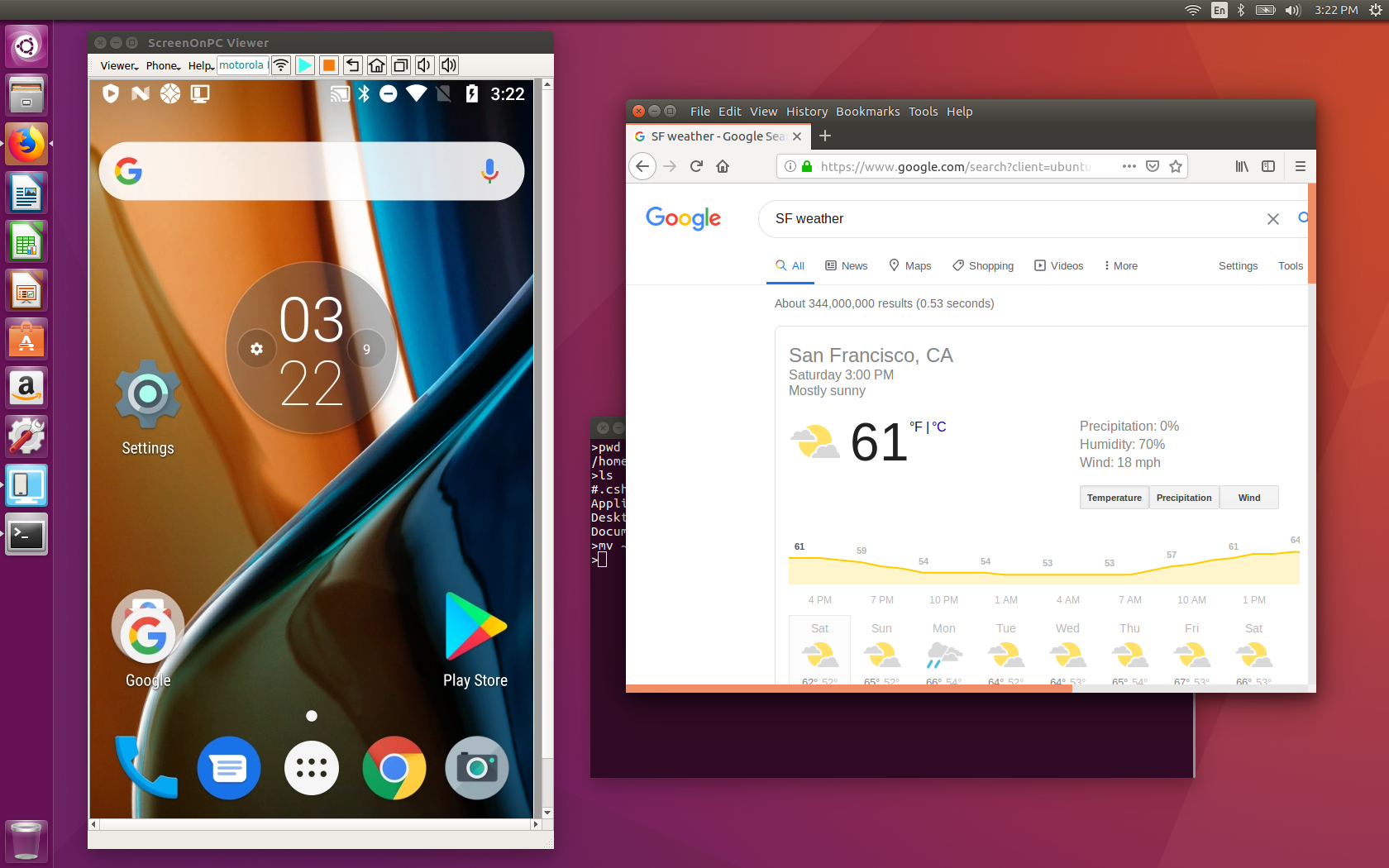
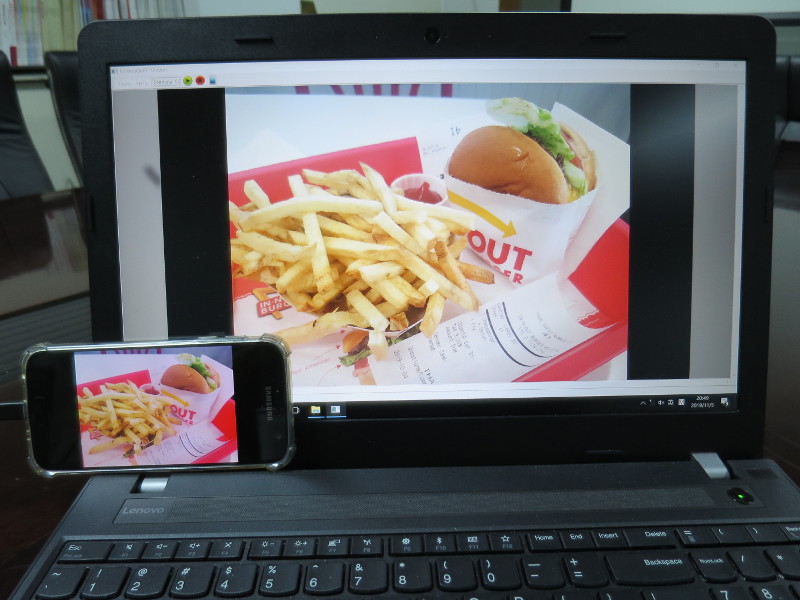
ScreenOnPC allows users to (1) mirror an Android phone screen on a PC, (2) control the Android phone directly from the PC, and (3) copy/paste text and transfer files between the Android phone and the PC.
ScreenOnPC consists of two software components: a server app that runs on an Android phone, and a viewer app that runs on a viewer device. The viewer device can be a computer running Windows, macOS or Linux. It can also be another Android phone. (For Windows , macOS and Android versions, please visit https://www.quaray.com .)
Features
- Easy WiFi connection
- Operate a phone using a mouse and keyboard from the PC
- Support secured, encrypted connections
- Fast image updates and smooth video playback
- Adjustable image size
- Copy and paste text between the phone and PC
- Transfer files between the phone and PC
- Viewer app available for Windows, macOS, Linux computers, and Android phones
System Requirements
- Smartphone: Android 7.0 or higher
- Linux PC: 64-bit Linux with glibc 2.23 or higher (e.g., Ubuntu 16 or higher, Debian 9 or higher)
Install ScreenOnPC Server App on Smartphone
- ScreenOnPC Lite (free version): https://play.google.com/store/apps/details?id=com.quaray.screenonpc.lite
- ScreenOnPC HD (paid version, $4.99): https://play.google.com/store/apps/details?id=com.quaray.screenonpc.hd
Install ScreenOnPC Viewer Program on a Linux Computer
- Click the Download button below.
- Navigate to the download directory, unzip the file, add “execute” permission to the unzipped file using a file manager. Or in a command line terminal, run “chmod a+x ScreenOnPCViewer_10.10–x86_64.AppImage”.
- The AppImage is the Viewer’s executable, which can be launched from the GUI or a terminal.
- Optionally, on a Ubuntu system, follow the steps below to add a shortcut on the desktop for the program.
- Optionally, follow the steps below to install the AppImageLauncher to register the file as an application with the system and show the application icon.

Note: MD5 Signature of the AppImage.zip file is “6D48DA3CA374712D030B69D0CEB8CAB9”. This MD5 Signature can be used to authenticate the publisher and verify the integrity of the downloaded zip file. The ScreenOnPCViewer program is utilized by users worldwide. And it has been thoroughly checked by various antivirus programs. We strongly recommend downloading this program only from the official site at https://www.quaray.com .
Add a Shortcut on Desktop on a Ubuntu System (Optional)
- Download the ScreenOnPC_icon_for_ubuntu.png icon image, save it in /home/[User_Name]/Downloads directory
- Download the ScreenOnPC_shortcut_for_ubuntu.desktop file, save it in /home/[User_Name]/Downloads
- Edit the ScreenOnPC_shortcut_for_ubuntu.desktop file, replacing “[User_Name]” with our username and updating version number.
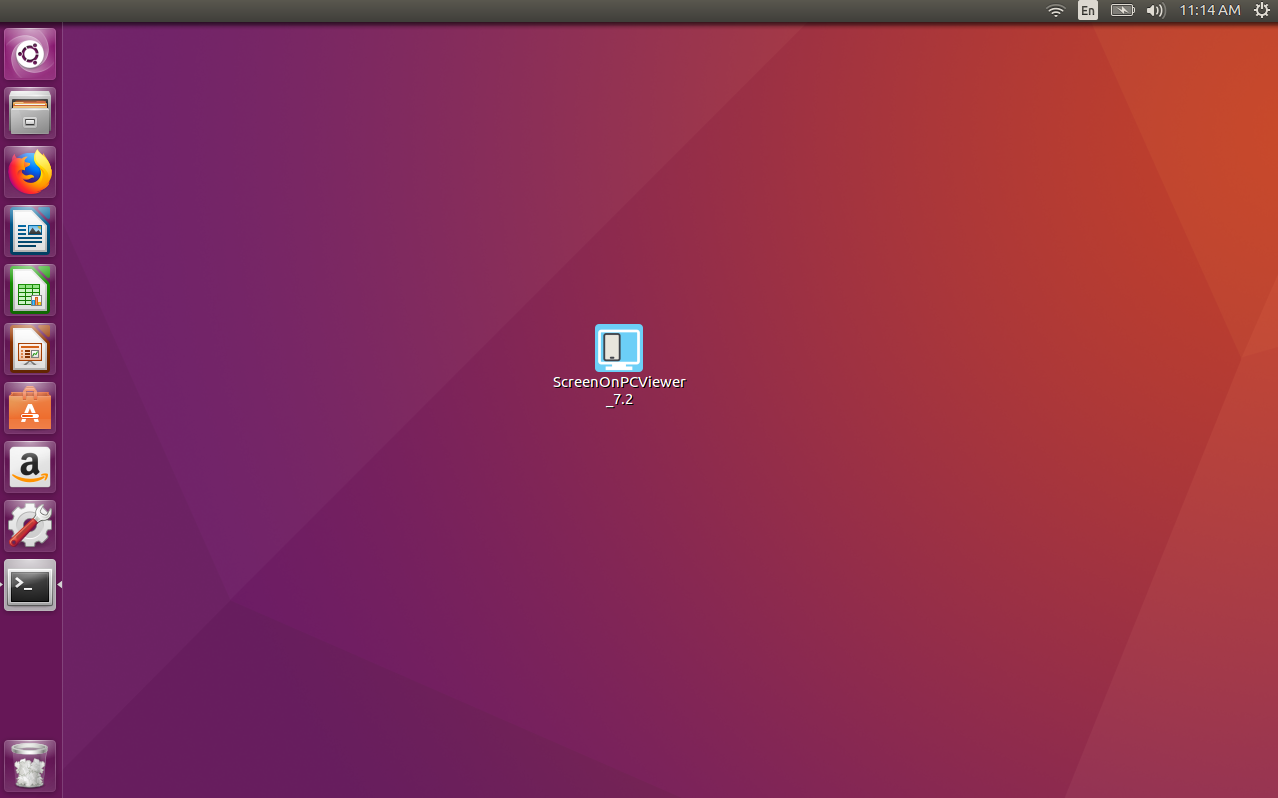
- Move the ScreenOnPC_shortcut_for_ubuntu.desktop file to /home/[User_Name]/Desktop. Then the shortcut should appear on the desktop as shown in the picture below.

Install and Configure AppImageLauncher (Optional)
- Go to AppImageLauncher releases website, choose and download a DEB file.
- Click on the downloaded DEB file and install the software.
- After installation, AppImageLauncher Settings appears under Applications menu.
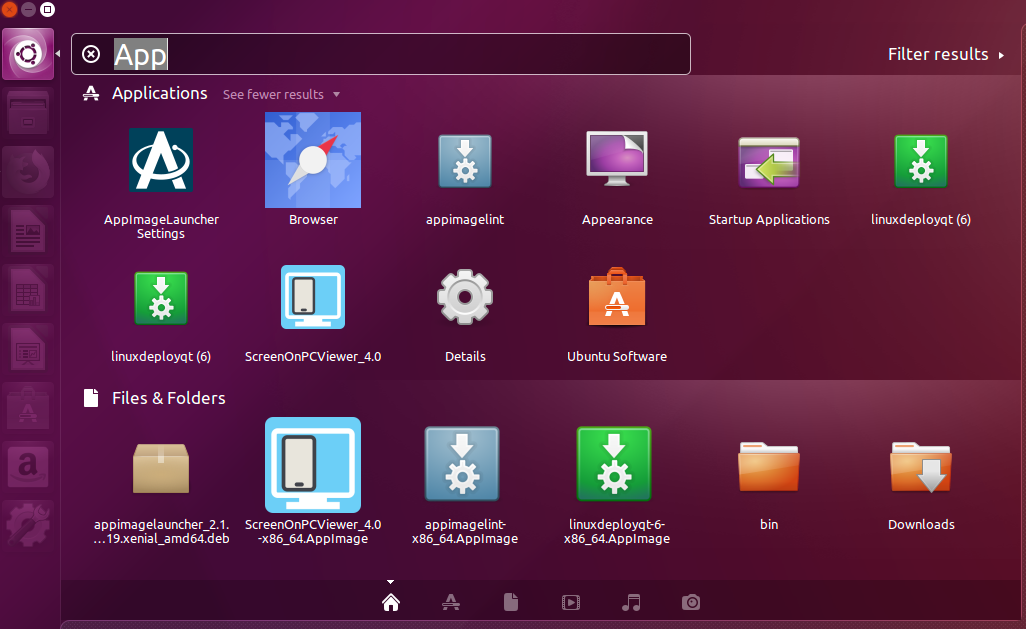
- Open the AppImageLauncher Settings, add the directory, where the ScreenOnPC AppImage file has been saved, to the “Additional directories to watch”. After the setting, the ScreenOnPC will appear in the Application menu as shown in the image below.
Steps to Run ScreenOnPC
- On the phone: Run the ScreenOnPC Server app, and select WiFi mode.
- On the PC: Run the ScreenOnPC Viewer AppImage file. Go to [Help]->[Settings], modify the [Phone IP Address] and [Passcode] to match with the values shown on the phone.
- On the phone: Tap the [Start] button.
- On the PC: Click the [Start] button.
Demo Video
Contact
For any questions, please send us emails at info@quaray.com